Select Region
Available Regions
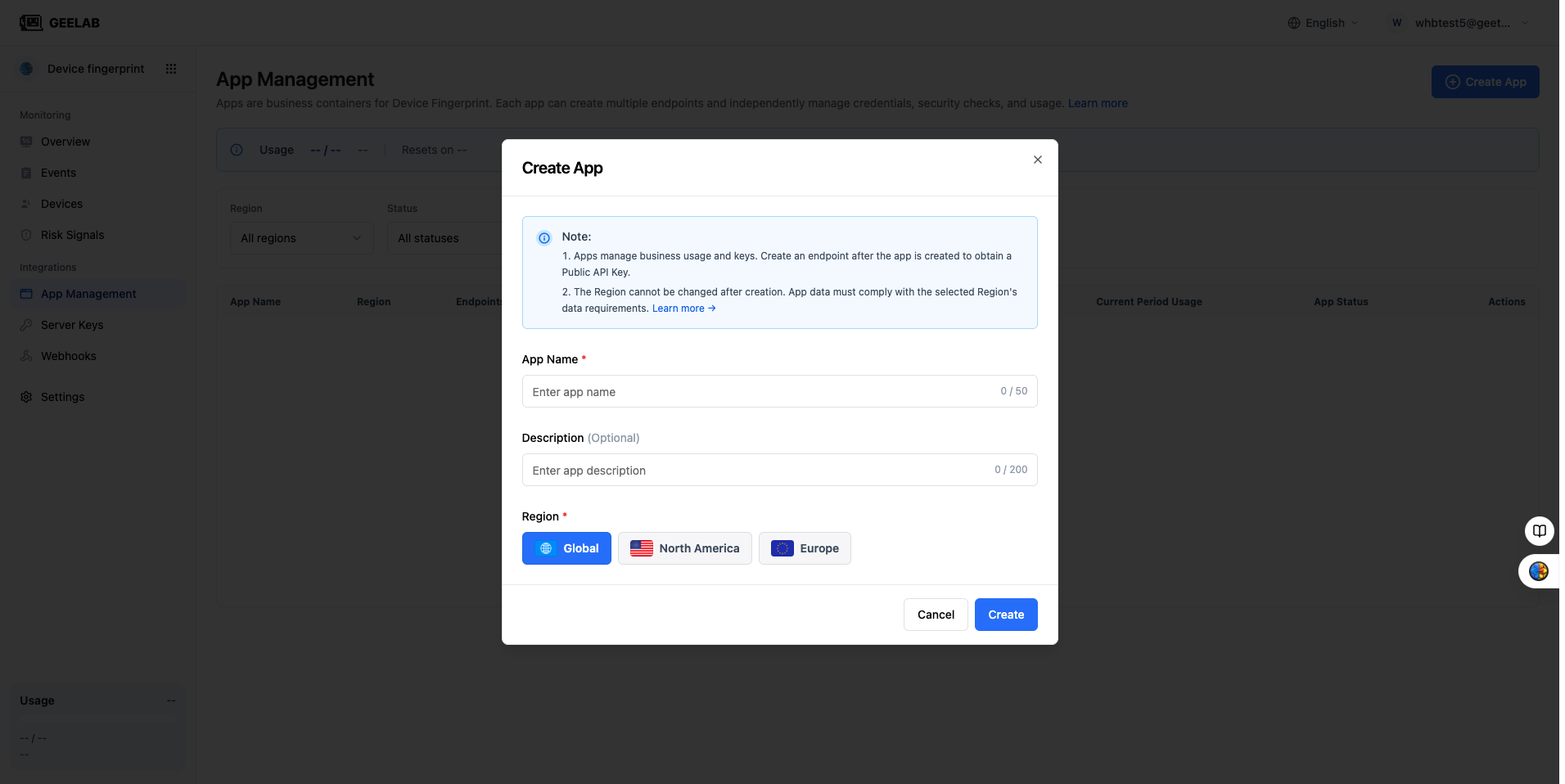
When creating an application, the console will display the Regions available to the current account, for example:
| Region | Applicable business reference |
|---|---|
| EU | Mainly conduct business in Europe, or require relevant data to be processed in Europe |
| NA | Mainly conduct business in North America, or require relevant data to be processed in North America |
| Global | Business covers multiple regions, and corporate compliance policies allow the use of global service areas |
The actual available Regions and corresponding service scope are subject to the console and the service agreement signed between you and Geelab.
How to determine which Region should be selected?
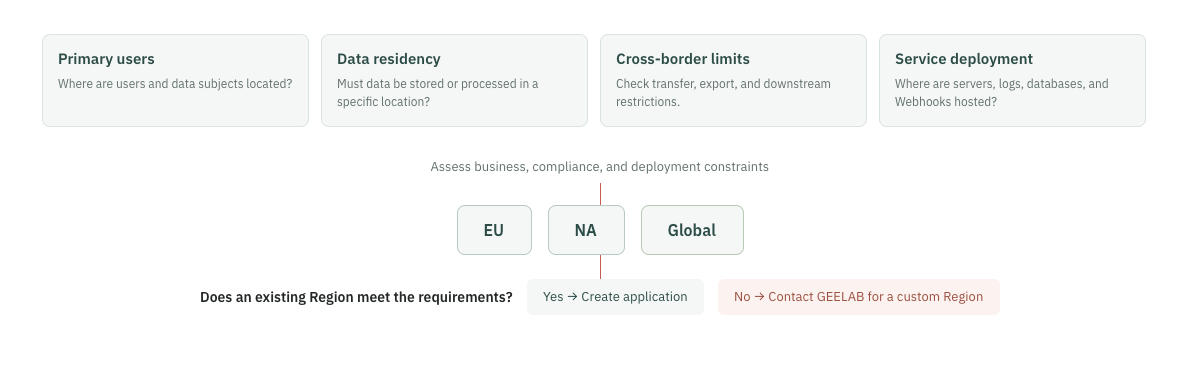
Before choosing, it is recommended to confirm the following questions in order.
Where are your main users?
Prioritize understanding of the countries or regions where business users and data subjects are located. If the business mainly serves European users, EU can be evaluated first; if the business mainly serves North American users, NA can be evaluated first.
The user's location is only one of the selection criteria. If there is a clear data area policy within the enterprise, the enterprise's compliance requirements should prevail.
Does the enterprise have data residency requirements?
Confirm whether device identification data must be stored and processed in a designated country or region. Relevant requests may come from:
- Corporate privacy and data security policy.
- Customer contract or data processing agreement.
- Industry regulatory requirements.
- Applicable laws and regulations in the region where the business is located.
Are there any restrictions on cross-border transfers?
If the business does not allow relevant data to be transferred to other regions, you should select a Region that can meet the data residency requirements, and also check the deployment locations of logs, Webhooks, data exports, and downstream systems.
Where is your server deployed?
Consider the Region where your backend, database, logging platform, and Webhook receiver are located. Deploying related systems in the same or a nearby Region often simplifies data-flow management and reduces network latency.
Will we need to operate multiple regions in the future?
If the same business needs to serve users in Europe and North America respectively, you can create separate applications for different regions instead of having one application span multiple Regions.
For example:
Main Storefront - EU
Main Storefront - NA
Both applications have their own integrations, events, device data, and Region server keys.
Recommended selection process
Confirm the primary user and business regions
          ↓
Confirm corporate data residency and cross-border requirements
          ↓
Check server, log, and Webhook deployment regions
          ↓
Select EU, NA, or Global
          ↓
Does an existing Region meet the requirements?
    ├─ Yes: Create the application
    └─ No: Contact Geelab to request a custom Region
Region cannot be modified after creation
After the application is created, the Region cannot be modified. The reason is that Region is not only the display attribute of the application, but also determines the scope of application data, server keys and Webhooks.
If direct modification of the Region is allowed, it may result in:
- Historical events and new events belong to different data areas.
- The device statistics range changes.
- The original server key no longer matches the application area.
- Webhook binding relationship is invalid.
- Unclear scope of data migration and cross-border processing.
Therefore, please double-check the Region before clicking Confirm Creation.
What to do if you select the wrong Region?
If you selected the wrong Region, create a new application in the correct Region and complete the integration again:
- Create a new application in the target Region.
- Re-create the Web, iOS, or Android integrations.
- Update the Public API Key used by the client.
- Configure the server-side key for the target Region.
- Re-create the Webhook in the target Region.
- Switch production traffic after testing is complete.
Historical events, device data, and device identifiers cannot currently be migrated from the old application to the new one. Existing data is not synchronized automatically and remains available only in the old application's Region, subject to its data-retention policy. After verifying the new integration and confirming that the old application is no longer needed, deactivate the old application. Before deleting it, confirm that you no longer need to query its historical data.