Request rate limits
Request rate limiting is used to control abnormal traffic and protect quotas and service stability. Geelab applies traffic controls at the integration level, allowing you to set rules for different platforms and integration points.
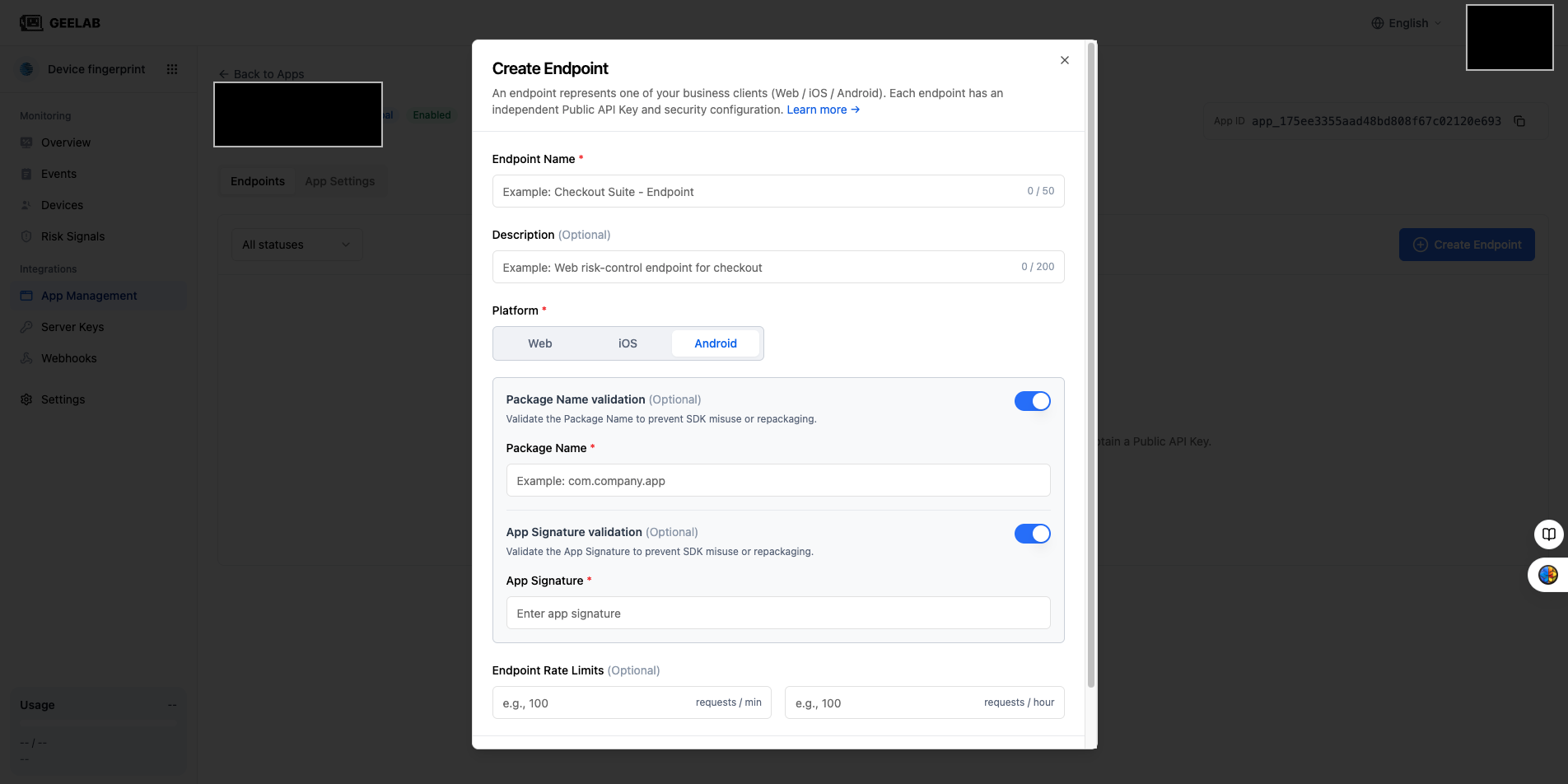
Integration minute/hour rate limits
Integration rate limits are set for an individual Web, iOS, or Android integration and usually include:
- Maximum number of requests per minute.
- Maximum number of requests per hour.
When setting, a margin should be reserved based on normal peak values. The per-minute limit multiplied by 60 should not be higher than the hourly limit.
For example, if the normal peak value is 100 times per minute, you can first set a higher test threshold based on business fluctuations, and then gradually adjust it through monitoring data, instead of directly using a too low limit.
Organization status and integrations rate limiting
Integration rate limiting affects only the current integration. If the organization is deactivated, the subscription plan expires, or the total quota is exhausted, multiple applications and integrations in the organization may be affected at the same time.
Performance after exceeding the limit
When the request exceeds the access limit:
- Geelab rejects requests that exceed the limit.
- The client may receive error codes related to rate limiting.
- Limits usually resume automatically after passing the normal time window.
- Application and access configurations are not automatically changed.
Rate limiting is not a permanent ban. Confirm whether the business is experiencing an abnormal peak before deciding whether to adjust the threshold.
Rate limiting troubleshooting
If a request is rejected, check whether it was rate-limited or whether the quota was exhausted, and distinguish integration-level rate limiting from organization-level quota issues.
If the request is throttled:
- Record the time the error occurred and the Request ID (if generated).
- Confirm whether only one integration is affected, or whether multiple integrations are affected at the same time due to organizational status or plan quota.
- Check the integration usage per minute and hour.
- View the organization's plan quota and current usage.
- Check if there are any abnormal retries, loop calls or batch tasks.
- Wait for the next time window to confirm whether automatic recovery occurs.
- Adjust the threshold based on long-term traffic and retain abnormal traffic protection.
Don't permanently turn off all throttling just to pass one test. For applications whose Public API Key is exposed to the client, maintain at least a reasonable layer of traffic protection.