Create and configure applications
Create application
- Enter Application Management.
- Click Create App.
- Fill in the application name and description.
- Select Region.
- After checking the information, click Confirm creation.
If there is no application, you can also enter the creation process from the empty state of the data overview.
Application name and description
The application name should allow team members to quickly understand where the business belongs. It is recommended to use a stable business name, such as:
Main Storefront - EU
Payments - NA
Member Center - Global
Application names within the same organization cannot be repeated. Descriptions can complement lines of business, cover platforms and uses, such as:
Checkout and payment services covering Web, iOS, and Android clients.Do not include server keys, private customer information, or internal passwords in the application description.
Select Region
Region determines the data service area of the application. It cannot be modified after creation, please confirm before submitting:
- Location of business users and data subjects.
- Enterprise data residency and cross-border transfer requirements.
- Deployment area for servers, logs and Webhooks.
- Whether the application needs to be operated separately in multiple regions.
If you selected the wrong Region, create a new application and integrations in the correct Region. For selection criteria, isolation rules, and migration guidance, see Region and Data Compliance.
If the available Regions do not meet your compliance requirements, contact Geelab to evaluate a custom Region.
View application ID
After successful creation, the application will get a unique App ID. App ID is used for:
- Locate the application in the Server API or ticket.
- Associated with event, devices and webhook configurations.
- Allow multiple environments or teams to accurately differentiate applications.
The app ID is usually read-only and cannot be modified manually. When copying the App ID, it is recommended to use the console copy button to avoid manual entry errors.
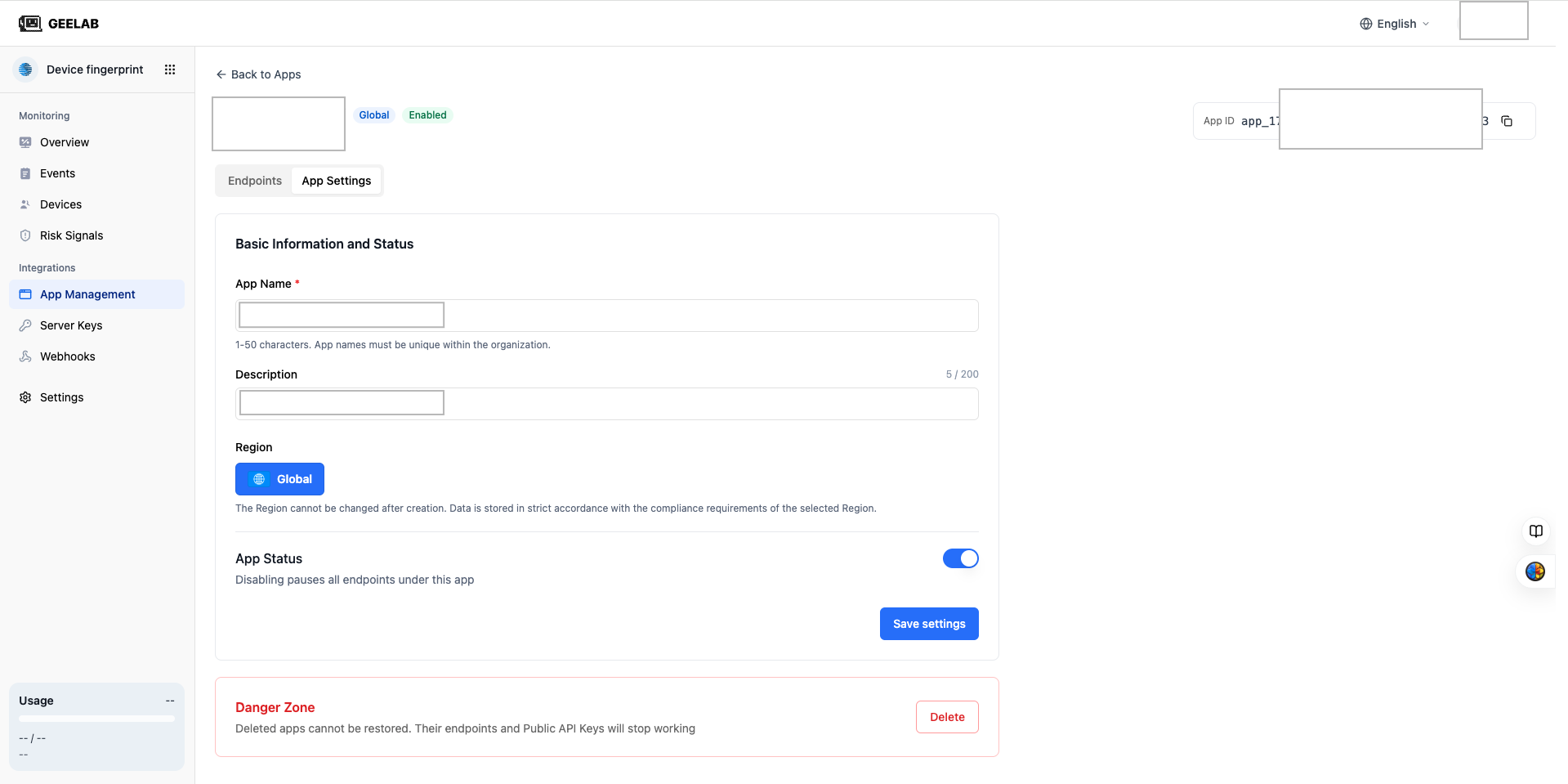
Application level status
Application-level configuration applies to all integrations under the application. Before saving app settings, please confirm:
- Disabling apps affects all platforms.
- Traffic filtering and traffic limiting are configured on the integration, and there is no need to set up an independent layer of traffic filtering rules for applications.
- Organization packages and total quota may affect all integrations under the application.