Device Fingerprint
Using the dashboardQuick Start

Troubleshooting common access failures

Quick Start: Troubleshooting common access failures

The console cannot find the event

Check in the following order:

  1. Whether you have chosen the right organization.
  2. Check whether the correct application and Region are selected.
  3. Whether the time range includes the request occurrence time, and pay attention to the difference between UTC+0 and local time.
  4. Whether the SDK returns the Request ID.
  5. Whether the Public API Key comes from the current endpoints.
  6. Whether the endpoints and application are enabled.
  7. Whether the request was rejected due to source verification, signature verification, rate limiting or insufficient quota.
  8. Is there a short delay in event storage or console display?

Public API Key is invalid

Possible reasons:

  • The Key of other endpoints or other platforms has been copied.
  • the endpoints to which the Key belongs has been deactivated or deleted.
  • The associated application has been deactivated or deleted.
  • There are extra spaces in the client configuration or an old build configuration is used.

Solution: Copy the complete key from the endpoint details again, check the application, platform and environment and rebuild it.

Web source verification failed

Check:

  • Does Origin contain the correct http:// or https://.
  • Whether the domain name, subdomain name and port match exactly.
  • Whether the page path is incorrectly filled in Allowed Origins.
  • Referer wildcard and path rules are correct.
  • Check whether the test environment uses domain names that are not included in the allowed list.

iOS verification failed

Check:

  • Whether the Bundle ID is consistent with the actual build.
  • Whether different Bundle IDs are used for the beta version and the official version.
  • Whether the Key of Android endpoint is used for iOS by mistake.
  • Whether the necessary configuration is missing after application signature verification is enabled.

Android verification failed

Check:

  • Whether the Package Name is exactly the same.
  • Whether Debug and Release use different signatures.
  • Whether the App Signature is copied completely and in the correct format.
  • Whether keys from other platforms are used incorrectly for Android.

Requests are restricted

If the test is repeated within a short period of time, minute or hour limits may be triggered. Check the endpoint rate limits, application-level restrictions, and organizational package quotas.

After entering the next time window, the endpoint rate limits will usually resume naturally. Do not directly cancel all protections just to pass the test. Adjust the thresholds based on actual business peaks.

Abnormal quota or subscription status

When an organization is in arrears, subscriptions are deactivated, or quotas are exhausted, the organization-level status may prioritize blocking requests even though applications and endpoints still appear to be enabled.

Please contact your organization's master account to check subscription and quota status.

Still unable to complete verification

Before contacting technical support, please have the following information ready:

  • Organization name and application name.
  • Region and integration platform.
  • Desensitized Public API Key suffix and suffix.
  • Test time and time zone used.
  • Request ID (if generated).
  • SDK name, version and initialization method.
  • Complete error code and error message.
  • Minimum steps to reproduce the problem.

Do not send full server keys, webhook tokens, or other sensitive credentials via email, tickets, or instant messaging.
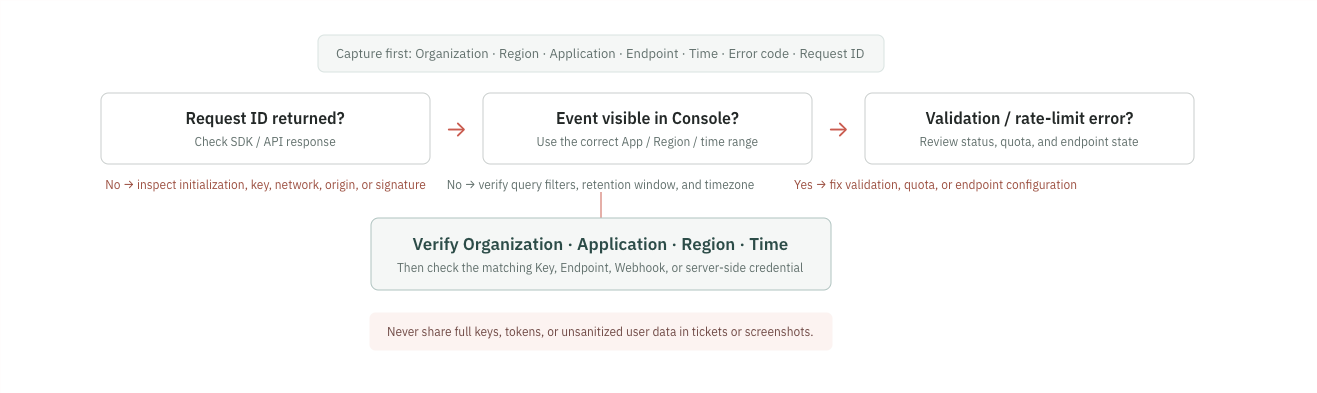
Graphic: First event troubleshooting