Create the first application
Applications are business containers for device fingerprint data, quotas, and integrations. When creating an application, you need to specify a name, description, and Region.
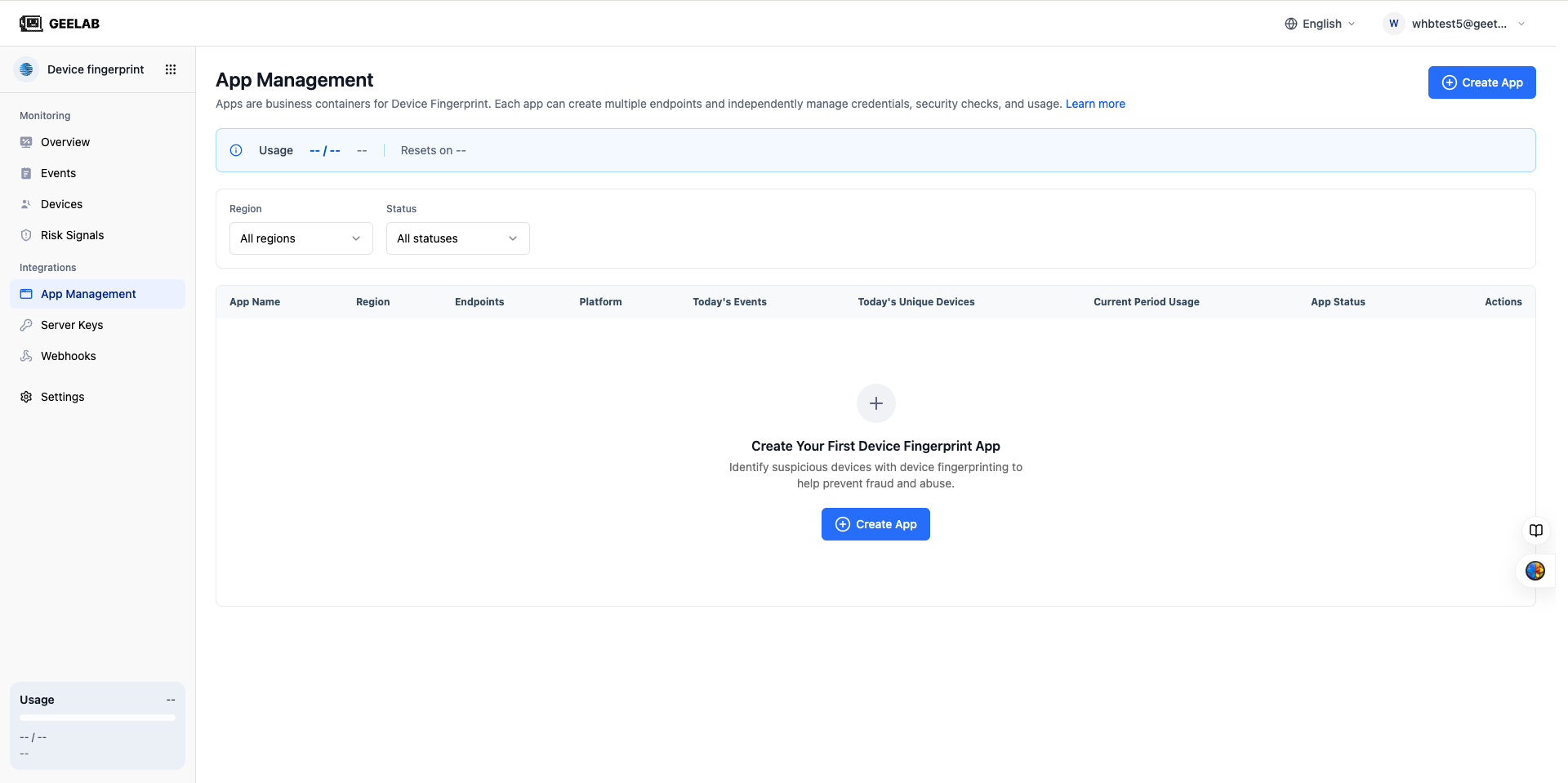
Enter application management
- Log in to the Geelab console.
- Confirm that the target organization is displayed in the upper-right corner or available from the organization switcher.
- Enter Application Management in the left navigation.
- Click Create Application in the upper right corner of the page.
If the current organization does not have any applications, you can also click Create Application in the empty state of the data overview.
Fill in application information
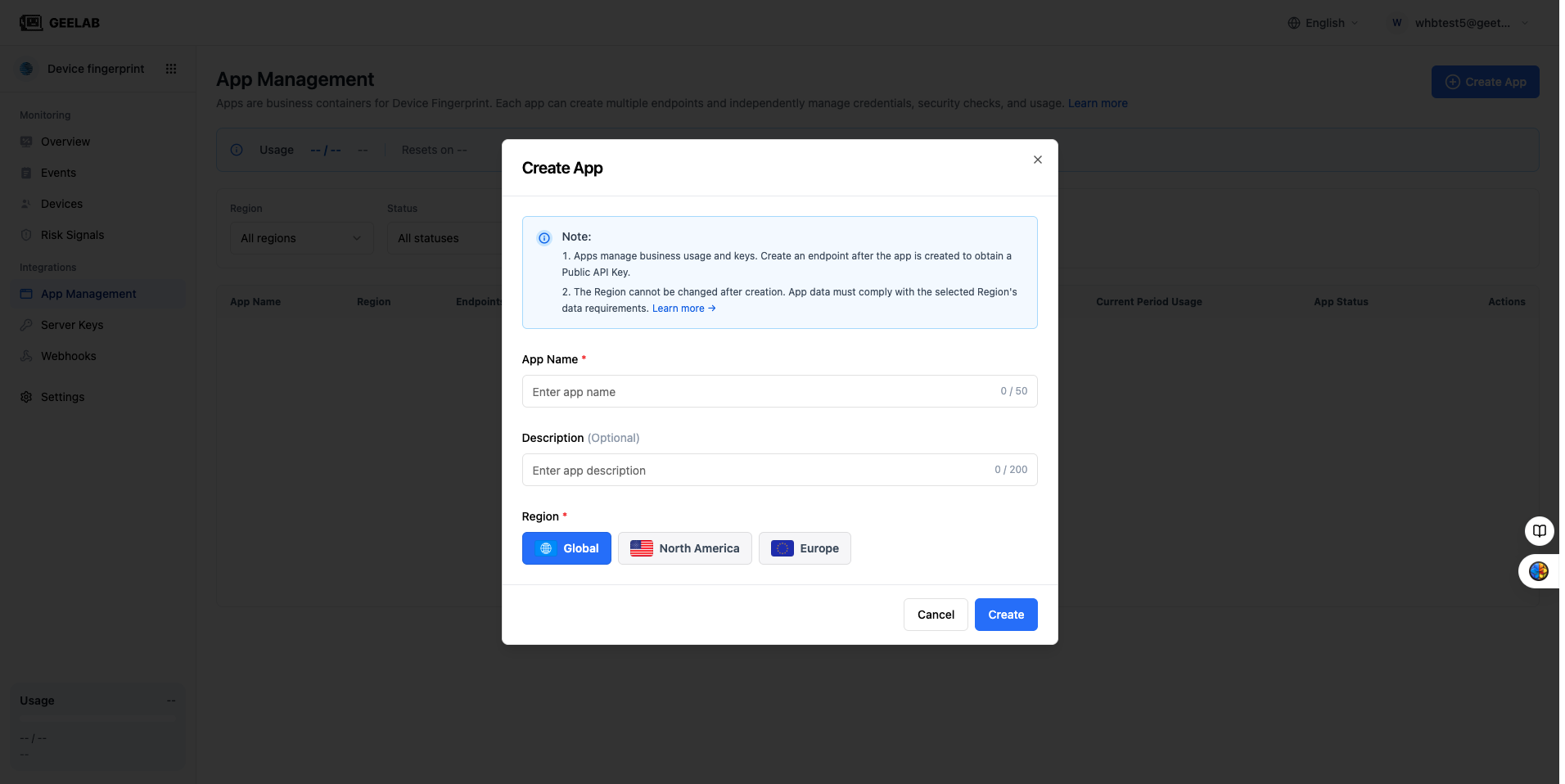
Fill in the create application pop-up window:
Application name
Enter a business name that will be recognized by your team over time. It is recommended to use a business or product name rather than a personal name, temporary project codename, or platform name.
Recommended examples:
Main Storefront
Payments
Member Center
Application names within the same organization cannot be repeated.
Application Description
Briefly describe the application purpose, business line or covered terminal. Descriptions help other members understand application boundaries.
Example:
Checkout and payment services covering Web, iOS, and Android clients.Region
Select a data region that meets business compliance requirements. Please confirm again before submitting, because the Region cannot be modified after it is created.
Important: Region cannot be modified after creation Region determines the isolation scope of data storage, calculation, server key and Webhook. If you select the wrong Region, you usually need to recreate the application and integrations in the correct Region and reconnect.
Submit creation
After reviewing the information, click Confirm creation.
After the creation is successful, the console will prompt you to continue creating the first integrations. You can:
- Create the integrations now and continue through this guide.
- Select Set Up Later to enter the app details page.
It is recommended to create the integrations immediately to complete the SDK integration and first event verification.
If it cannot be created, please check:
- Whether the current account has Device Fingerprint product access.
- Whether the application name already exists.
- Whether the current organization has reached the upper limit of the number of applications.
- Whether the Region is still selectable.