Organization and account system
What is an organization?
Organizations are the top-level containers in GEELAB for team members, product subscriptions, access control, and business assets.
Organizations typically include:
- An organization owner and invited members.
- Enabled products and plans.
- Product configuration and business data.
- Device Fingerprint applications, integrations, events, devices, risk signals, keys, and Webhooks.
When the same account joins multiple organizations, the data, product subscriptions, and permissions of each organization are isolated from each other. After the user switches organizations, the applications, events, and configurations in the console will also switch with the current organization.
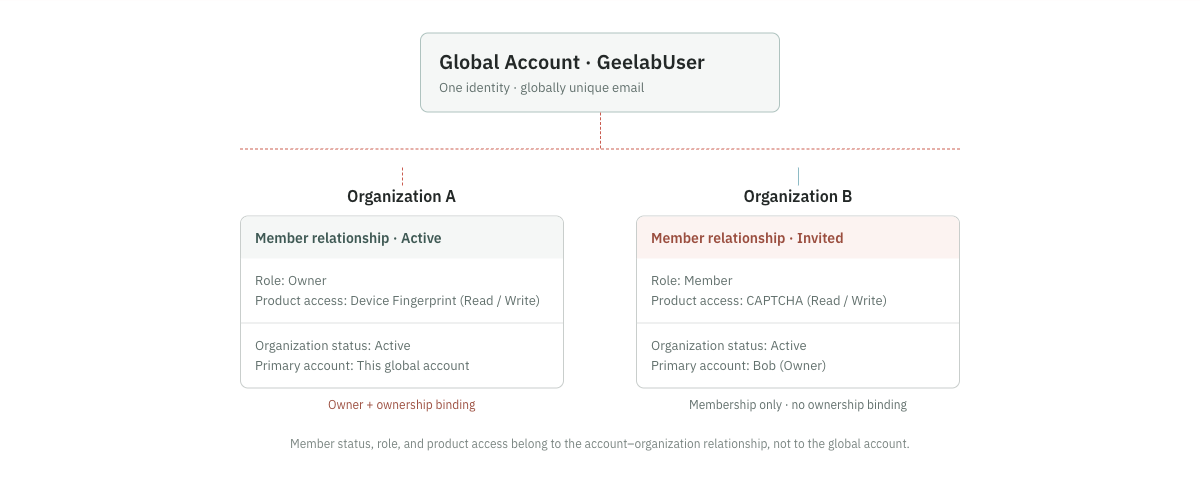
Global account and organization membership relationship
The global account is used to sign in to GEELAB and is typically identified by a unique email address. Organization membership determines whether the account can access an organization and which products it can use there.
Global account: [email protected]
│
├── Organization A
│   ├── Member status: Active
│   ├── Device Fingerprint: Read and write
│   └── CAPTCHA: No access
│
└── Organization B
    ├── Member status: Disabled
    ├── Device Fingerprint: Read-only
    └── CAPTCHA: Read-only
This means:
- Deactivating membership in organization B will not log out the global account.
- The user can still log in and access Organization A.
- Deleting a membership relationship in organization A does not automatically delete the relationship in organization B.
- Modifying product permissions in one organization will not affect other organizations.
Account login and business isolation
GEELAB and other business systems may share basic user-profile data, but they should use independent authentication configurations and authorization rules. Passwords, sessions, and organization context in GEELAB are governed by GEELAB authentication policies.
Organizational data isolation follows the following principles:
- Users can only see organizations they have joined and have a healthy status.
- After entering an organization, you can only access products that have been subscribed by the organization.
- Even if the organization has activated a certain product, members still need to be assigned corresponding product permissions.
- Members with read-only or read-write access can view data; only members with read-write access can perform create, update, and delete operations.
- Member permissions and business data between organizations will not be automatically inherited.
organization owner and members
organization owner
The organization owner is responsible for organization-level management, including:
- View and modify organization profiles.
- Invite and manage members.
- Assign member product permissions.
- Deactivate, reinstate or delete members.
- View organization subscriptions and membership quotas.
- Handle issues where members cannot access the organization or products.
Each organization currently has one organization owner, and ownership transfer is not available in the dashboard. The organization owner cannot leave an organization they own.
members
Members are users invited to join an organization. They can view or manage products according to their assigned product access, but generally cannot:
- Invite or remove other members.
- Modify other members' permissions.
- Modify organization owner.
- Delete an organization.
- Perform organization-management operations reserved for the organization owner.
members can actively exit the organization. After exiting, all product permissions granted by the organization will expire; if you need to rejoin, you must be re-invited by the organization owner.
Join multiple organizations with one account
The same global account can join multiple organizations. The global upper limit in the current product design is to join a maximum of 10 organizations, including organizational relationships that have been joined normally; whether invitations to be activated are included in the upper limit should be based on the actual server rules.
After joining multiple organizations:
- After logging in, the user enters the organization last used or specified by the system.
- You can enter other organizations through Switch Team or Switch Organization in the account menu.
- Each organization displays membership and product permissions separately.
- Deactivated organizations can be displayed in the toggle list, but cannot be entered.
- Organizations that have left or had their membership removed are no longer displayed.
If a user has joined 10 organizations, additional invitations are blocked. The user must leave an organization they no longer use or ask the relevant organization owner to remove their membership.